01
Install MuteCall
Drop the app into your Mac workflow and keep it in the menu bar.
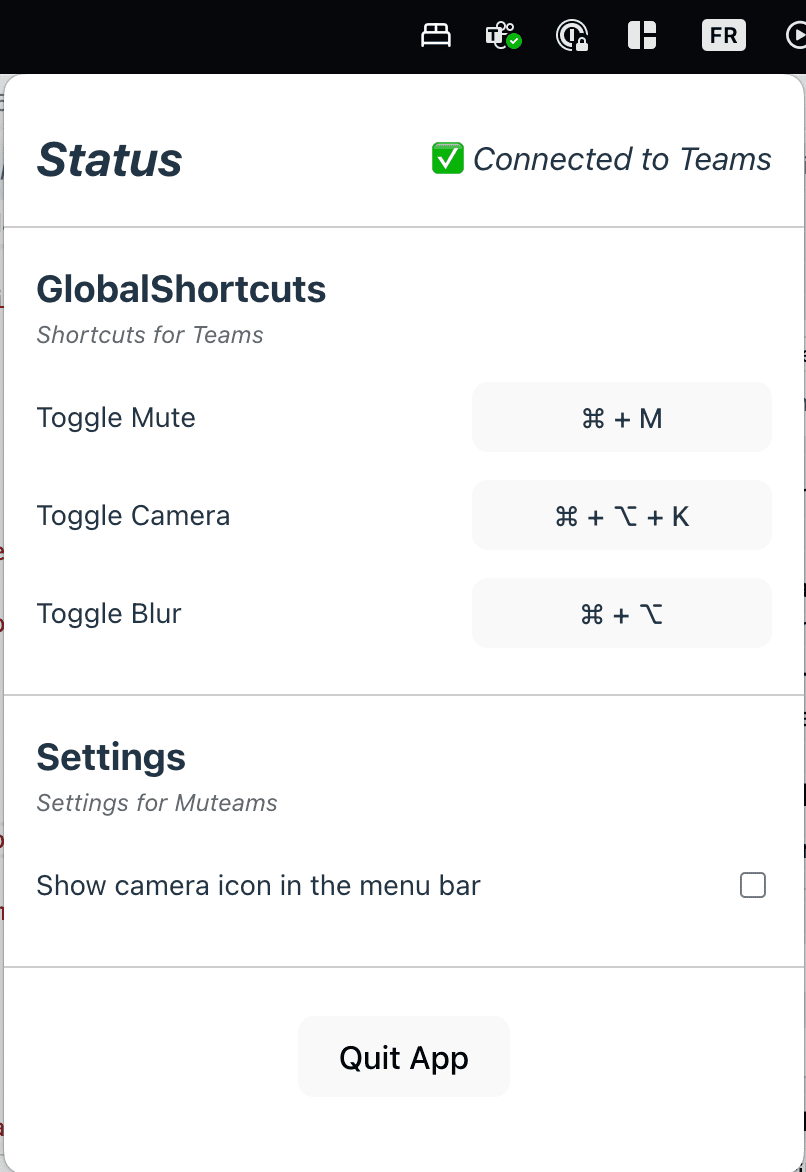
MuteCall lives in your menu bar, gives you one reliable mute shortcut, and helps you verify setup before your first real meeting.
Product truth
Teams not detected
The Teams desktop app is not running on this Mac.
Teams app detected
Teams is open, but Third-party app API is still unavailable.
Teams is connected
MuteCall can talk to Teams and finish shortcut setup.
Ready to test
Teams is connected and one mute shortcut is configured.
01
Someone asks you a question while you are in Chrome, VS Code, or Terminal.
02
You waste a few seconds finding the right Teams window before you can speak.
03
MuteCall turns that awkward scramble into one reliable shortcut from anywhere.
How it works
MuteCall should make sense in one pass: install it, enable one Teams setting, then test your shortcut before you need it in a live meeting.
01
Drop the app into your Mac workflow and keep it in the menu bar.
02
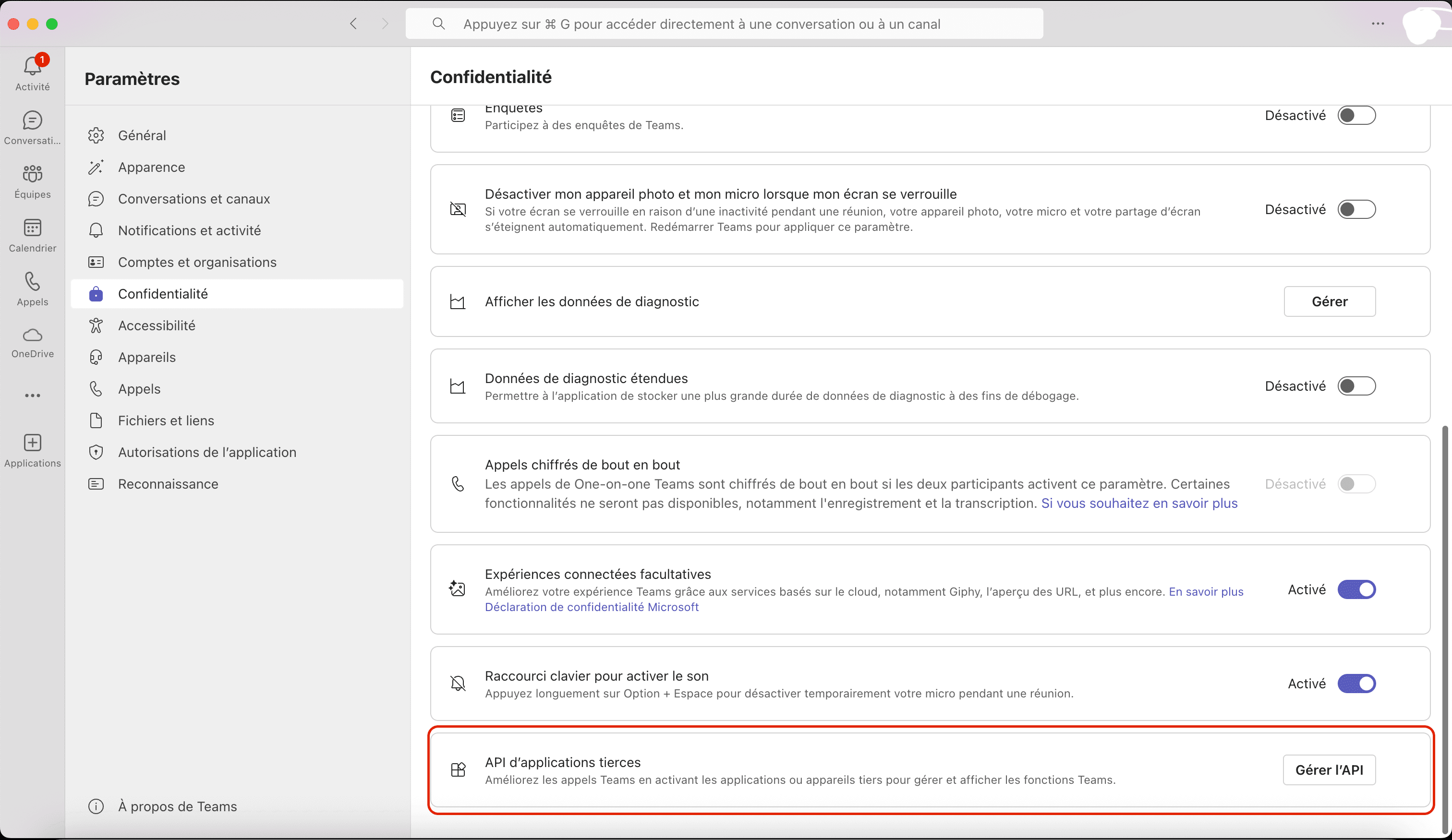
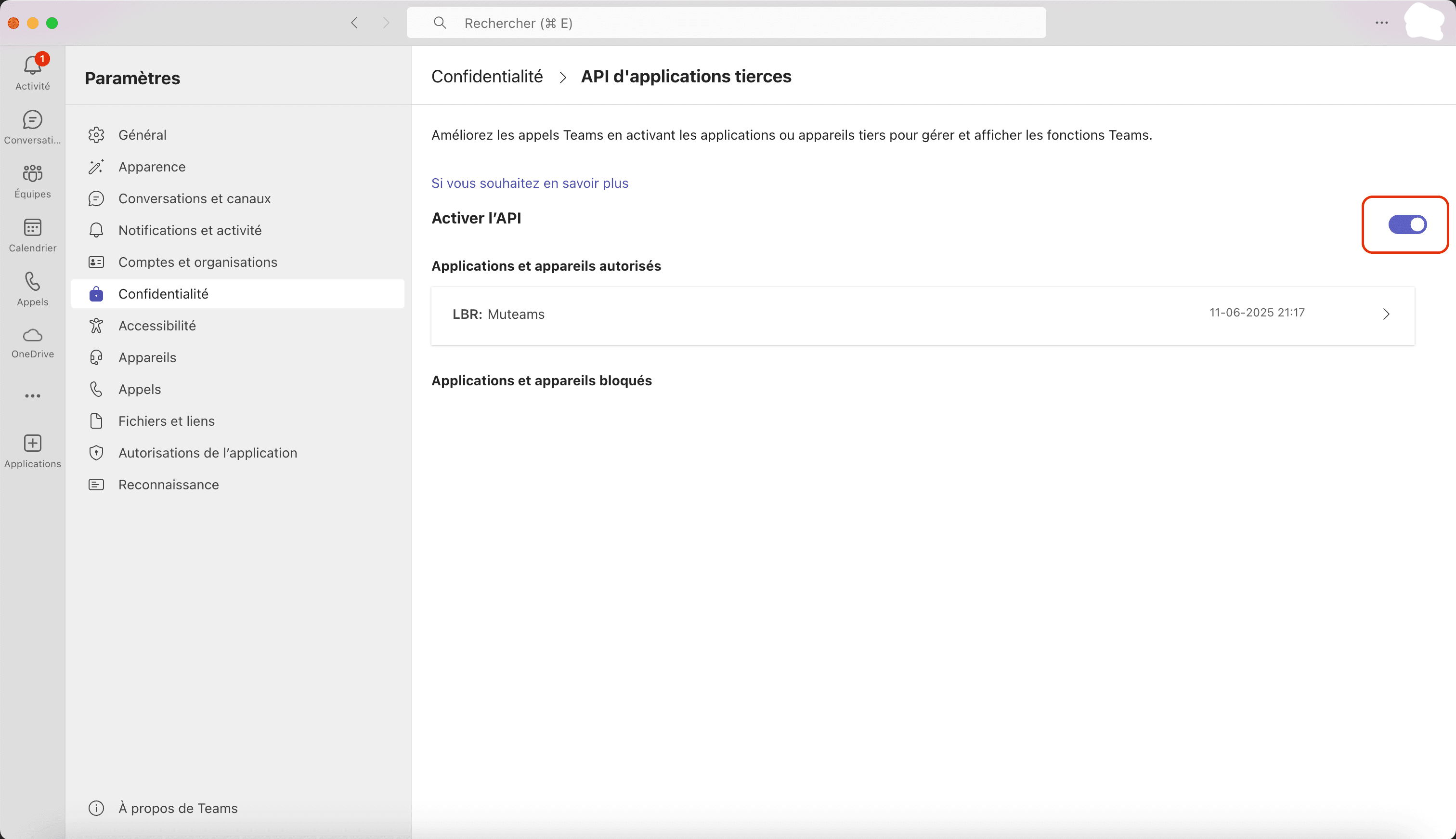
Open Teams Settings > Privacy and enable Third-party app API.
03
Set one shortcut, switch away from Teams, and mute or unmute without window hunting.
Setup requirements
MuteCall only works with Microsoft Teams desktop on macOS, and Teams must expose Third-party app API. This is normal setup, not fine print.
Required before first test
Readiness model
Teams not detected
The Teams desktop app is not running on this Mac.
Teams app detected
Teams is open, but Third-party app API is still unavailable.
Teams is connected
MuteCall can talk to Teams and finish shortcut setup.
Ready to test
Teams is connected and one mute shortcut is configured.
Tutorial hub
Each page has one job only: enable Teams, run a first mute test, or troubleshoot the states that still block readiness.
Enable the required Teams setting and verify the app can see the desktop client.
Read tutorialConfirm the mute shortcut works before you need it in a real meeting.
Read tutorialWork through the most common reasons setup is still blocked.
Read tutorialIn scope
Not in V1
FAQ
The launch page should help technically comfortable Mac users self-serve their way to a successful first test.
Yes. The launch scope is Microsoft Teams desktop on macOS, with MuteCall running as a local menu bar utility.
No. Browser Teams is out of scope for V1. The product depends on the Teams desktop app and its local control channel.
Yes. In Teams, open Settings > Privacy and enable Third-party app API. Without that setting, MuteCall cannot control Teams.
No backend is required for the core workflow. The product is local-first and talks directly to Teams on your Mac.
Use the tutorial hub first. Check whether Teams is running, whether Third-party app API is enabled, and whether your mute shortcut is configured.
Download and help
The launch flow stays honest about scope: Teams desktop on macOS, one mute shortcut, one clear setup path, and a tutorial hub for the common blockers.