Numbered steps
- 1
Open the Microsoft Teams desktop app on your Mac.
- 2
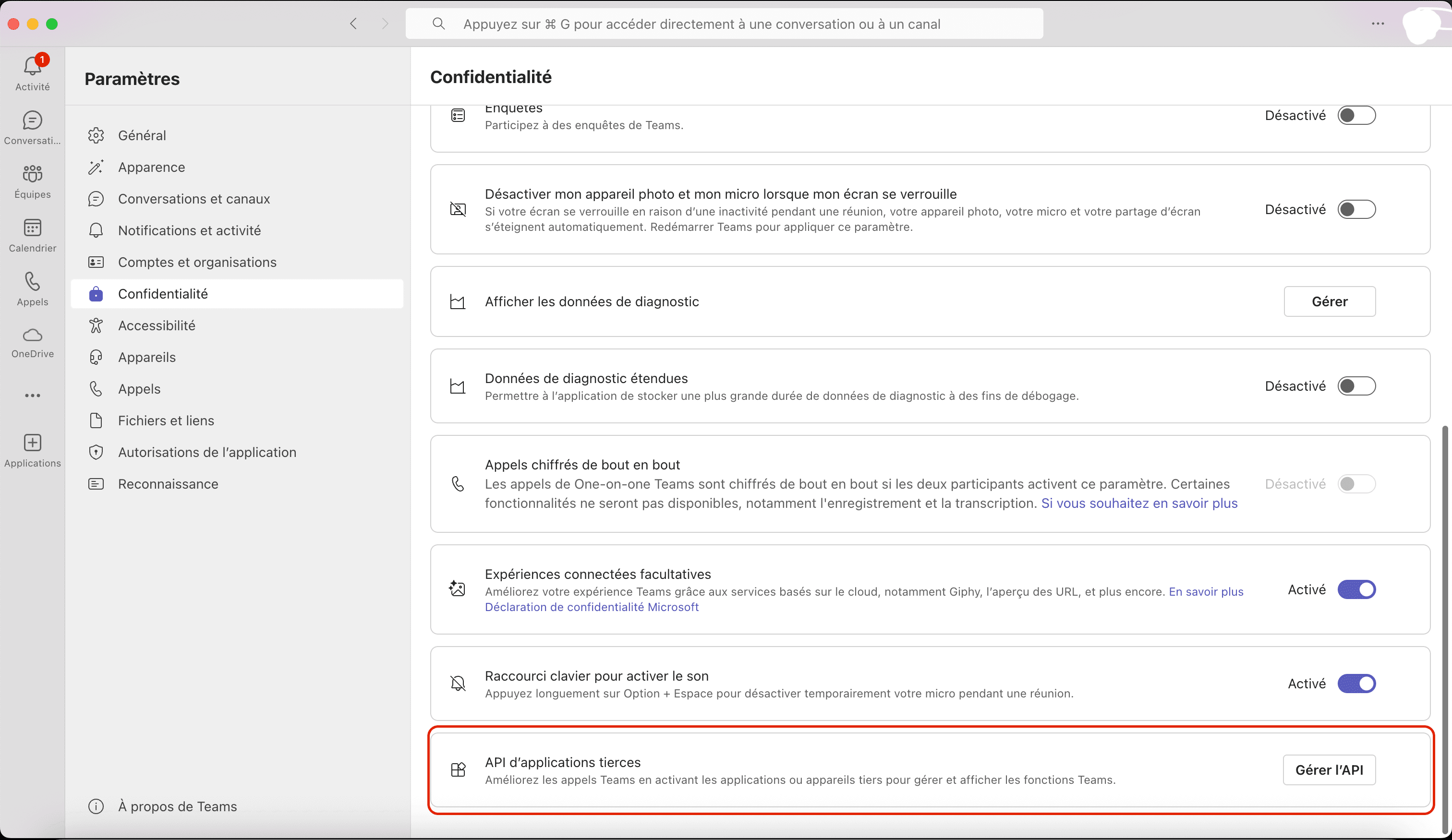
Go to Settings > Privacy.
- 3
Enable Third-party app API.
- 4
Return to MuteCall and confirm the state moves from Teams app detected to Teams is connected.
2 min tutorial
Enable the required Teams setting and verify the app can see the desktop client.
Outcome
MuteCall can see Teams and reports the correct readiness state.
Numbered steps
Open the Microsoft Teams desktop app on your Mac.
Go to Settings > Privacy.
Enable Third-party app API.
Return to MuteCall and confirm the state moves from Teams app detected to Teams is connected.
What success looks like
If this does not work
Next step
Continue with first mute test.