3 min tutorial

First mute test

Confirm the mute shortcut works before you need it in a real meeting.

First mute test

Outcome

You can mute and unmute Teams from another app without returning to the Teams window.

Numbered steps

  1. 1

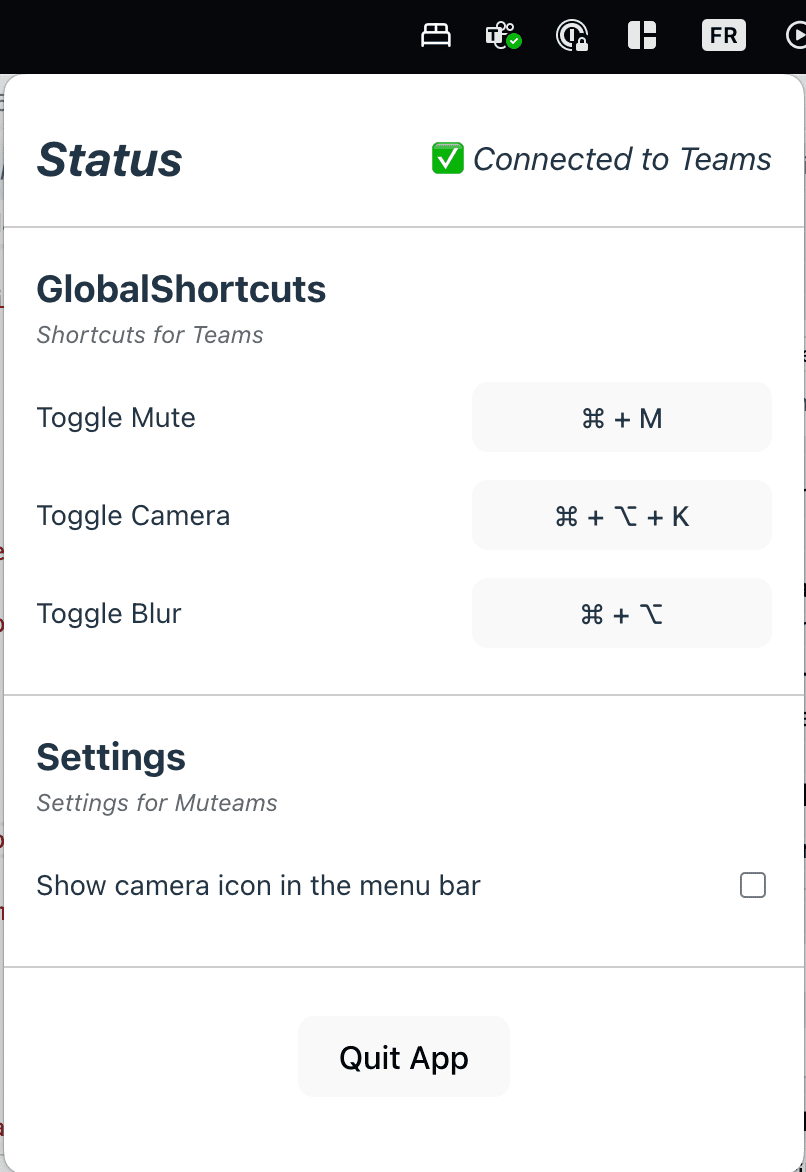
    Open MuteCall and confirm Teams is connected.

  2. 2

    Configure one mute shortcut or confirm the existing shortcut.

  3. 3

    Switch to another app such as Chrome, Terminal, or your editor.

  4. 4

    Use the shortcut and verify Teams responds immediately.

What success looks like

  • MuteCall reports a ready state.
  • The shortcut triggers while Teams is not focused.
  • You can speak without hunting for the meeting window.

If this does not work

  • If the shortcut does not trigger, re-open MuteCall and verify the shortcut was saved.
  • If Teams does not respond, return to the Teams setup tutorial and confirm the API setting.
  • If setup still looks incomplete, use the troubleshooting guide.

Next step

Continue with troubleshooting.

Open next tutorial